Q & A
![]()

Turn trivia into a teaching tool for your product or service knowledge. Beyond education, it filters for the highly engaged, loyal fans who already know your brand—deepening the connection between them and your product. Younger audiences skip long blocks of text; bite-sized, interactive learning is what gets them to participate.
Features
Question bank & daily rotation
Build a question bank, and each session pulls a set number of questions at random. By default, the system prioritizes questions the player hasn’t answered yet, so everyone sees the full bank over the course of the campaign.
Question formats
- True/false questions
- Text or image questions
- Randomize or fix answer order (so players can’t just memorize positions)
Answer explanations
- Attach an explanation to each question to reinforce the lesson
- If wrong answers still advance the quiz, the explanation appears right after any attempt
- If a correct answer is required to advance, the explanation only appears once they get it right—a wrong answer prompts them to try again
Advance rules
- Advance on any answer, right or wrong
- Advance only on a correct answer
(Limit each player to one attempt, or allow retries.)
Flexible flow builder
Insert content pages and question sets anywhere in your flow, and reorder question sets at will.
| Cover page | The opening screen—fully customizable |
| Content page | A blank canvas you can drop between questions—add a video or other content to guide players |
| Question page | True/false, image, or text questions |
| Results page | Design multiple outcomes and tailor what each player sees based on their score |

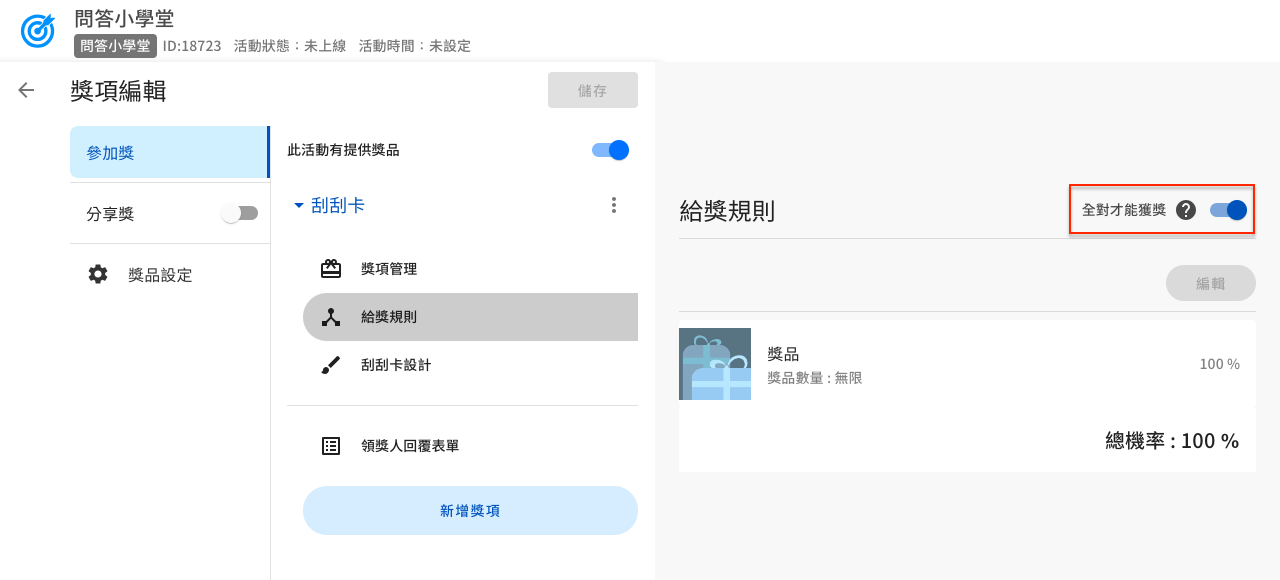
Require a perfect score to win
This setting raises the stakes—players have to answer every question correctly to unlock a prize or instant-win entry.
From questions to rewards in four steps
The hard part of a trivia quiz was never the setup—it’s writing the questions. Now AI can handle that step for you.
Let an AI Q & A builder write your questions
The AI Q & A Builder from Fever AI Agent picks up your brand info and marketing goals fast, and can read straight from your brand’s own site to generate fun or educational questions on demand. One click builds a highly engaging quiz for your most loyal fans—works equally well for brand storytelling and product education.
Build your question bank and set the rules
Save your questions to a question bank, and each round pulls a fixed number at random—prioritizing ones the player hasn’t seen yet, so they get through the full bank over the course of the campaign. Choose from true/false, text, or image questions, randomize answer order so players can’t just memorize positions, and set the advance rule to either “wrong answers still move forward” or “only a correct answer moves you forward.”
Add explanations so the quiz also teaches
Every question can carry its own explanation. If wrong answers still advance the quiz, the explanation appears right after any attempt; if a correct answer is required, it only appears once they get it right, and a wrong answer prompts another try. This is the step that decides whether your quiz is just a lucky draw or actually teaches your product.
Set up the flow and the reward conditions
Cover, content, question, and results pages can all be inserted and reordered freely—content pages are a blank canvas where you can drop in a video between questions, and results pages can show different content based on the score. To raise the stakes, turn on “perfect score to win,” so only players who answer everything correctly earn a prize or an instant-win entry.
Once it’s built, embed it on your website, drop it into a LINE rich menu, or drive traffic from a social post. Pair it with multiple login options, and every attempt becomes a traceable record of member engagement.
Live demo
Demo 1: Tell a story
Q & A case studies
Ready to launch your Q & A quiz?
No code required—build it yourself and see what a trivia quiz can do for engagement.
